![Crystal Dew World [en]](http://crystalmark.info/en/wp-content/uploads/sites/3/digipress/magjam/title/TitleLogo20250202-Cinzel.png)
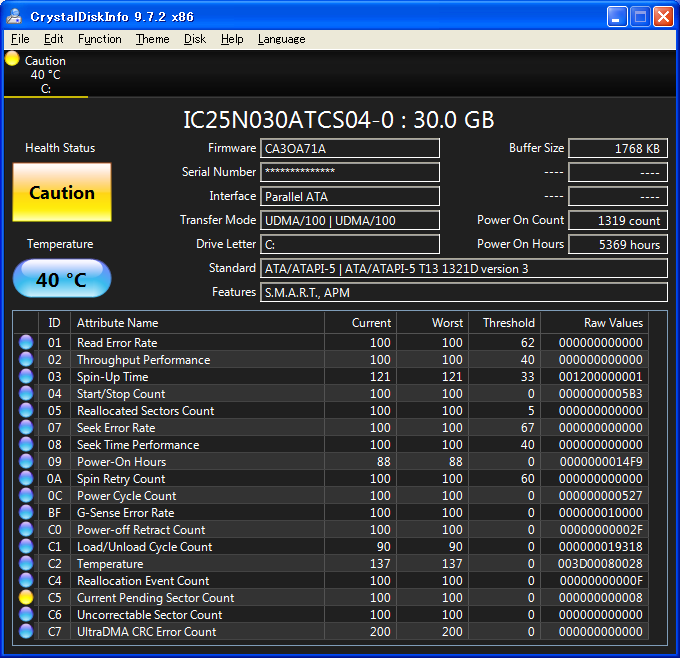
When you open CrystalDiskInfo, you may be alarmed to see the drive health status displayed as yellow “Caution” or red “Bad.”
The most important point is this:
If CrystalDiskInfo shows “Caution” or “Bad,” back up your important data to another storage device before investigating the cause.
A “Caution” status does not necessarily mean that the drive will stop working immediately. However, there is also no guarantee that it will continue operating safely for months or years.
CrystalDiskInfo does not predict the exact date of a drive failure or calculate its remaining lifespan with certainty. It reads S.M.A.R.T. information reported by the drive and presents the condition in an understandable way, helping users decide when to back up their data or replace the drive.
*Please note that CrystalDiskInfo does not support all HDDs and SSDs. With some products, it may incorrectly assess the health status. Please contact us if you suspect an incorrect assessment. Furthermore, depending on the product, inappropriate S.M.A.R.T. values may have been set at the time of manufacture. Please be aware that CrystalDiskInfo may not be able to resolve this issue.
The First Three Things You Should Do
1. Copy Important Data to Another Storage Device
Begin by backing up anything you cannot afford to lose, including:
- Photos and videos
- Work documents
- Email data
- Creative projects
- Game save files
- Personal records
Suitable backup destinations include:
- Another internal HDD or SSD
- An external USB HDD or SSD
- A NAS device
- A trusted cloud storage service
Moving files to another folder or partition on the same physical drive is not a backup. If the drive itself fails, all partitions on that drive may become inaccessible.
If errors occur while copying files, prioritize the most important data and copy it in small batches. Repeatedly retrying the same failed operation may place additional stress on an unstable drive.
2. Save the CrystalDiskInfo Information
Take a screenshot of the CrystalDiskInfo window so that you can review the condition later.
You can also select Edit > Copy to copy the drive information as text. This information may be useful when contacting the computer manufacturer, drive manufacturer, repair service, or technical support.
3. Consider Replacing the Drive After Backing Up
A drive showing “Caution” or “Bad” should not continue to be used as the only storage location for important data.
After the backup is complete, check whether the computer or drive is still under warranty. Contact the manufacturer if necessary and consider replacing the drive.
What Is the Difference Between “Caution” and “Bad”?
“Caution”
“Caution” means that CrystalDiskInfo has detected a sign of deterioration or a potential problem in one or more monitored attributes.
For HDDs, the default health-status evaluation mainly checks the following attributes:
- 05: Reallocated Sectors Count
- C5: Current Pending Sector Count
- C6: Uncorrectable Sector Count
CrystalDiskInfo displays “Caution” when one of these values exceeds the configured threshold.
“Caution” does not mean that the drive will definitely fail immediately. However, the drive is no longer in a completely normal condition. Treat the warning as an opportunity to verify your backups and consider replacement.
“Bad”
“Bad” may be displayed when the normalized value reported by the drive falls below the threshold defined by the manufacturer.
This indicates that the drive may no longer be operating normally. If important data remains on the drive, stop using it for ordinary tasks and copy the data as soon as possible.
Consider contacting a professional data recovery service if:
- Files cannot be read
- The drive makes unusual sounds
- The connection repeatedly drops
- Windows no longer recognizes the drive
Continuing to operate a physically failing drive may make recovery more difficult.
Three HDD Attributes That Commonly Trigger “Caution”
05: Reallocated Sectors Count
HDDs have spare sectors that can replace areas that can no longer store data reliably.
The Reallocated Sectors Count indicates how many sectors have already been replaced by spare sectors.
A small nonzero value does not necessarily mean that the drive will fail immediately. However, if the value continues to increase, the recording surface may be deteriorating.
C5: Current Pending Sector Count
This attribute represents unstable sectors that could not be read correctly and are waiting for further evaluation.
When this value is nonzero, you may experience:
- File read errors
- System freezes
- Failed copy operations
- Slow response times
The value may decrease if the sector is later read or written successfully. It may also be converted into a reallocated sector.
Even if the value returns to zero, this does not necessarily mean that the drive has completely returned to a healthy condition.
C6: Uncorrectable Sector Count
This attribute represents sectors that could not be recovered using the drive’s error-correction mechanisms.
Some data stored in these sectors may no longer be readable. If this attribute is reported, prioritize backing up the remaining accessible data.
What Does “Caution” Mean for an SSD?
SSDs manage health differently from HDDs.
CrystalDiskInfo may use information such as:
- Remaining life
- Percentage used
- Available spare capacity
- Vendor-specific endurance indicators
The exact attributes depend on the SSD manufacturer and controller.
For many SSDs, CrystalDiskInfo displays “Caution” when the remaining life reaches 10% or less.
However, the percentage is generally an estimate based on the write endurance defined by the manufacturer. It cannot be directly converted into a specific number of remaining days or months.
If the remaining life is low, confirm that your backups are current and plan to replace the SSD.
Does “Good” Mean That a Backup Is Unnecessary?
No.
Even if CrystalDiskInfo shows “Good,” it does not guarantee that the drive will not fail unexpectedly or that data loss cannot occur.
Some S.M.A.R.T. attributes are strongly associated with an increased risk of failure. However, drives may also fail without displaying a clear warning beforehand.
Important data should always be stored in more than one location, regardless of the displayed health status.
CrystalDiskInfo is not a substitute for backups. It is a tool that provides information to help you decide when to back up or replace a drive.
What You Should Not Do Before Backing Up
After seeing “Caution” or “Bad,” you may be tempted to run intensive tests immediately.
However, if important data exists only on the affected drive, back it up before performing any of the following:
- Long benchmark tests
- Full-drive write tests
- Unnecessary large file-copy operations
- Formatting or initialization
- Repair operations that may modify or erase data
Investigation and testing should begin only after the important data has been secured.
Check Whether the Values Are Increasing
With S.M.A.R.T. information, the current value is important, but changes over time can be even more significant.
After backing up your data, you may periodically open CrystalDiskInfo and record the raw values of the affected attributes.
In particular, replacement is strongly recommended if values such as 05, C5, or C6 continue to increase.
However, a stable value does not guarantee safety. For important systems, replacing the drive after the first warning is the safest choice.
Frequently Asked Questions
Can I Change “Caution” Back to “Good”?
CrystalDiskInfo allows you to change some health-status threshold settings.
However, changing the display from “Caution” to “Good” does not repair the drive or improve its physical condition.
Do not focus on hiding the warning. Prioritize backing up the data and identifying the cause.
The C7 Interface CRC Error Count Is Increasing
C7 usually records communication errors between the drive and the computer.
Possible causes include:
- A defective SATA cable
- A loose connector
- A power-supply problem
- Poor electrical contact
Replace or reconnect the cable and check whether the raw value stops increasing.
The value is often cumulative, so it may not return to zero even after the underlying problem has been resolved.
My External HDD Is Not Displayed
Some USB bridge chips and external enclosures do not support the commands required to retrieve S.M.A.R.T. information.
A drive not appearing in CrystalDiskInfo does not mean that the drive is healthy.
Check the specifications of the enclosure and any diagnostic tools provided by the drive or enclosure manufacturer.
Can I Continue Using a Drive That Shows “Caution”?
You may decide to use it for temporary data that can be lost without consequence.
However, it should not be used as the only storage location for important data.
The value of lost data is often far greater than the cost of replacing the drive.
Summary
If CrystalDiskInfo shows “Caution” or “Bad,” take the following steps:
- Back up important data to another physical drive or storage service.
- Save a screenshot and copy the CrystalDiskInfo drive information.
- Check the warranty status of the drive or computer.
- Review the manufacturer’s diagnostic tools and support information.
- Replace the HDD or SSD if necessary.
The most important action is not to spend hours investigating the warning before protecting your data.
Back up first. Investigate afterward.
We hope CrystalDiskInfo helps you recognize potential problems early and protect your valuable data.